Figma AI: A Designer’s New Superpower
Unless you’ve been living under a rock (or deep in a 2014 Dribbble rabbit hole), you already know AI is everywhere. Not literally everywhere — your toaster isn’t self-aware (yet) — but most of the tools we use daily have some form of AI baked in.
And one of the most important tools in a designer’s daily workflow — the holy grail of UI/UX — is (drumroll please)… FIGMA!
Yes, Figma has AI. And not just a cute little feature hidden under a dropdown — it has multiple AI-powered tools that can genuinely save hours of work and make your workflow smoother.
But here’s the catch: AI doesn’t make you a better designer. Knowing how to use it intentionally does. That’s what separates a thoughtful designer from the ones who use ChatGPT for the most trivial things.
So if you’ve used Figma’s AI a little (or didn’t even know half these features exist), here’s the complete list of Figma AI tools and how to use them smartly.
Disclaimer: You do need a paid subscription for all Figma AI features.
Annoying? Yes.
Surprising? Not really.
Figma’s got to make the bread somehow.
1. First Draft
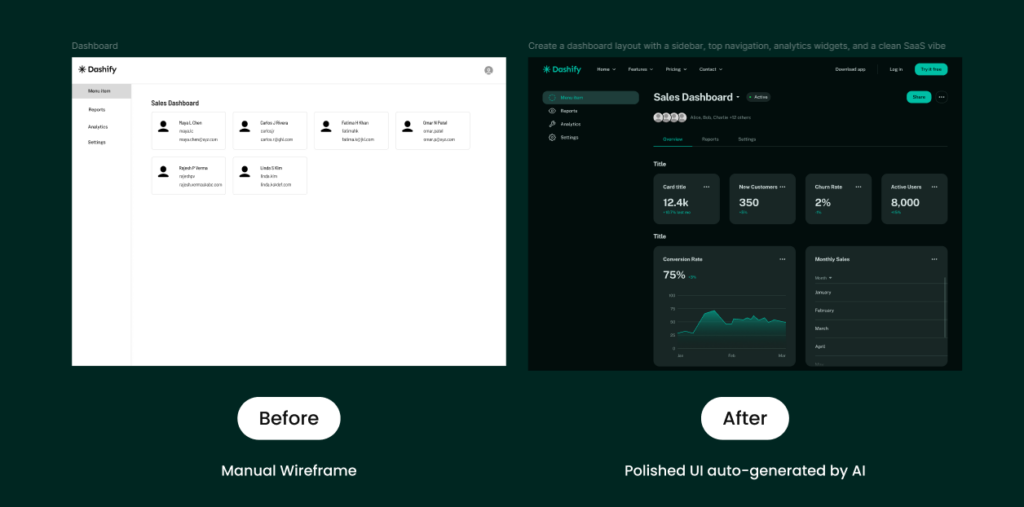
Figma can now auto-generate UI layouts based on text prompts.
Write something like:
“Create a dashboard layout with a sidebar, top navigation, analytics widgets, and a clean SaaS vibe.”
And boom — you get a high-fidelity starting point.
Smart Ways to Use It
- Kickstart screens when you’re blocked or under tight deadlines
- Generate alternate layouts for A/B testing
- Quickly explore layout directions during brainstorming
- Speed up MVP mockups for stakeholder alignment
Note: This is not your final design. Consider it a starting structure — you still apply your taste, hierarchy, spacing… basically, the actual design skills.
2. Find Assets & Designs
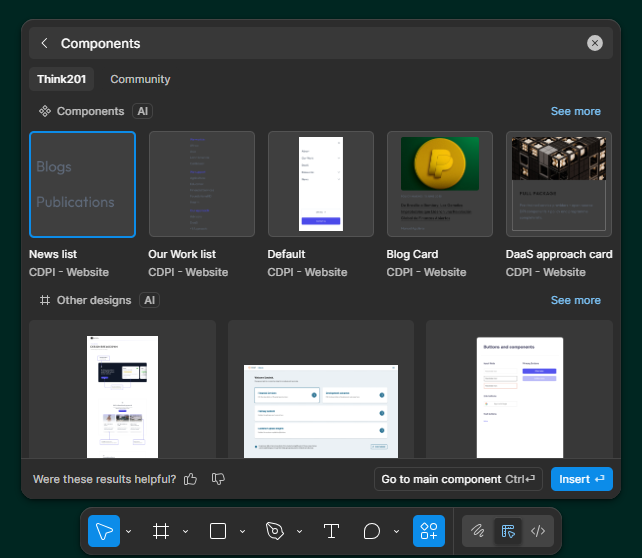
Figma AI enhances search inside:
- Files
- Components
- Libraries
- Documentation
Ask something like “CTA button from Design System” and it jumps right to it.
Smart Ways to Use It
- Quickly find assets in large projects
- Reduce manual library browsing
- Improve design system adoption
3. Replace Content, Rewrite, Translate, Shorten Text
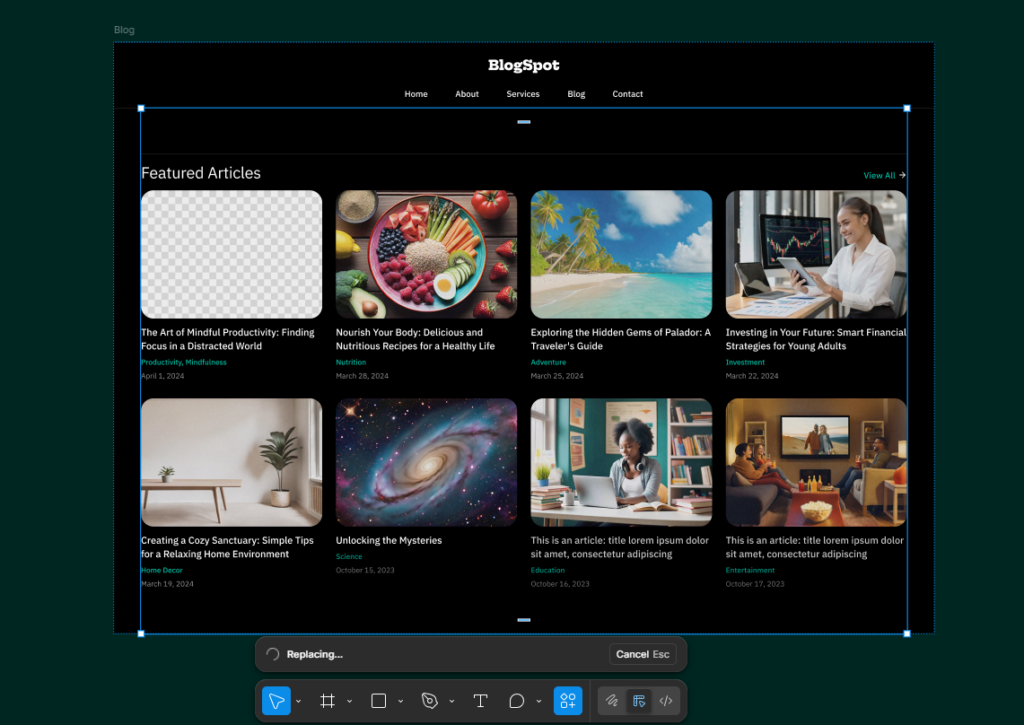
Say goodbye to “Lorem ipsum dolor sit amet email goes here idk.”
Figma’s AI can generate:
- Button labels
- Empty state copy
- Form placeholders
- Text Suggestions
- Success/error messages
- Marketing lines for mockups
Smart Ways to Use It
- Explore multiple voice tones for content
- Speed-draft options for stakeholders
- Improve user flows with contextually aware copy
- Generate realistic prototypes for usability testing
This is basically your friendly UX writer who works instantly (and never complains).
4. Add Interactions
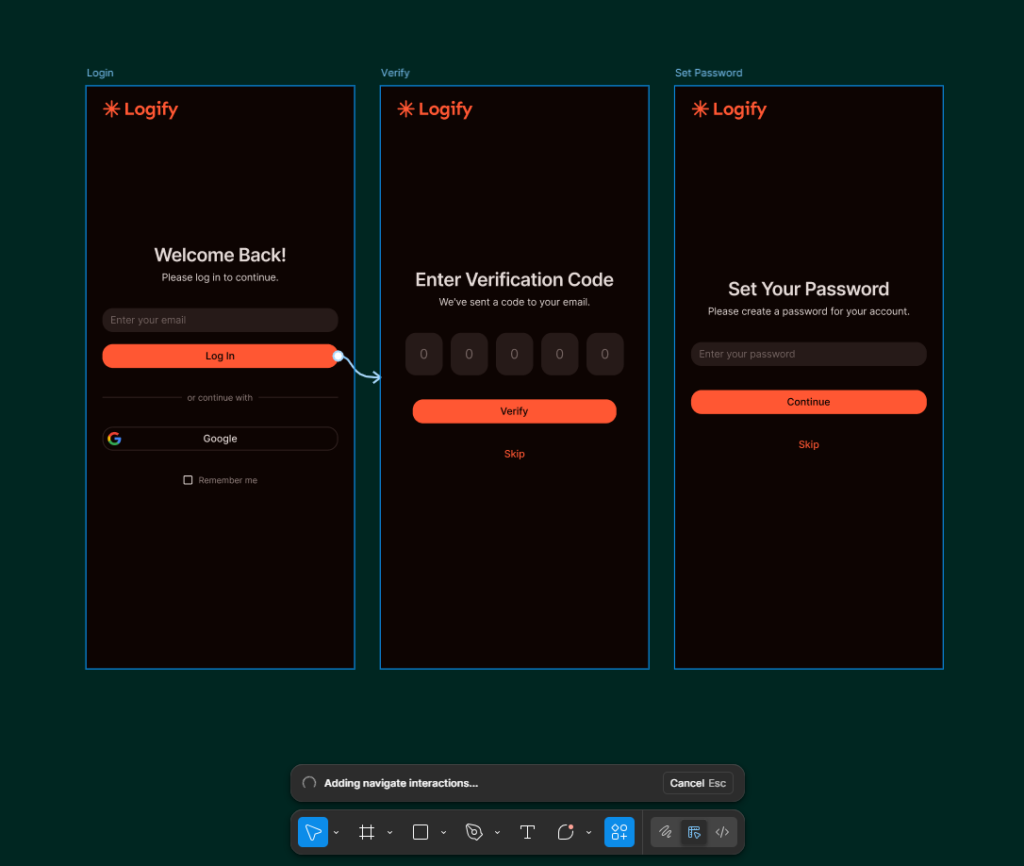
You can now ask Figma AI to:
- Create click-through prototypes
- Add transitions
- Link screens logically
- Suggest interaction patterns based on UX best practices
Smart Ways to Use It
- Build quick prototypes for testing
- Validate early flows
- Reduce setup time in larger journeys
- Avoid missing obvious interaction links
5. Rename Layers
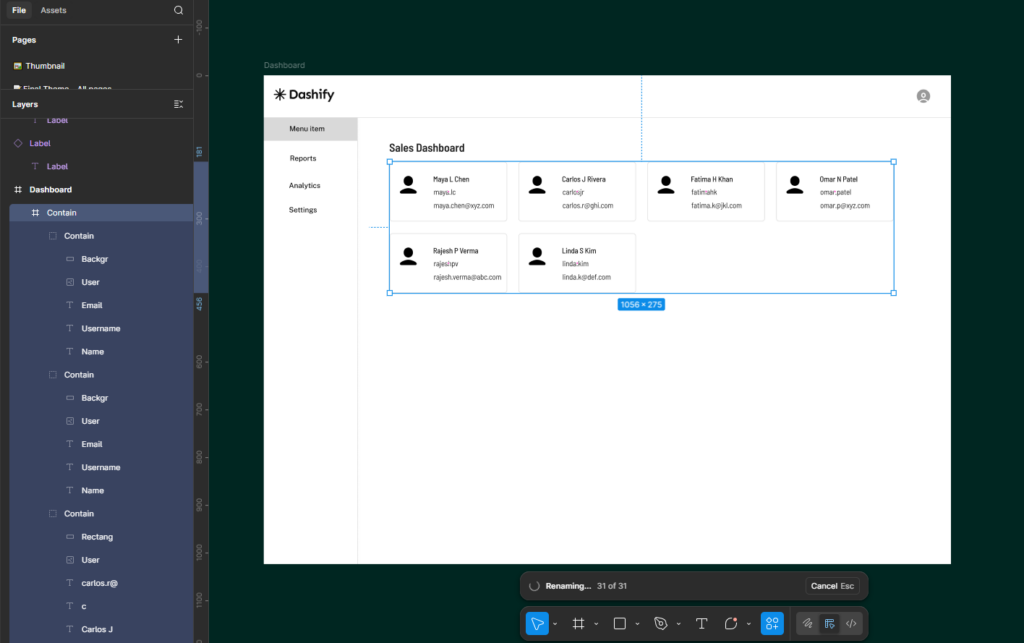
Figma AI can clean your entire file like that friend who reorganizes your room “for fun.”
It helps you clean up and name layers intelligently, turning “Rectangle 23 Copy (45)” into meaningful names.
It can:
- Rename layers
- Group and frame elements
- Fix spacing issues
- Standardize grid usage
- Remove unnecessary layers
- Apply constraints intelligently
Smart Ways to Use It when
- Your file is messy.
- You’re preparing your file for handoff to developers or other designers.
- You want better organization and readability in complex designs.
- You want to instantly tidy messy community files
- Maintain consistency across large design systems
- Avoid the chaos of “Rectangle 1432525 Copy 7”
Dev teams will love you for this.
6. Make & Edit Images
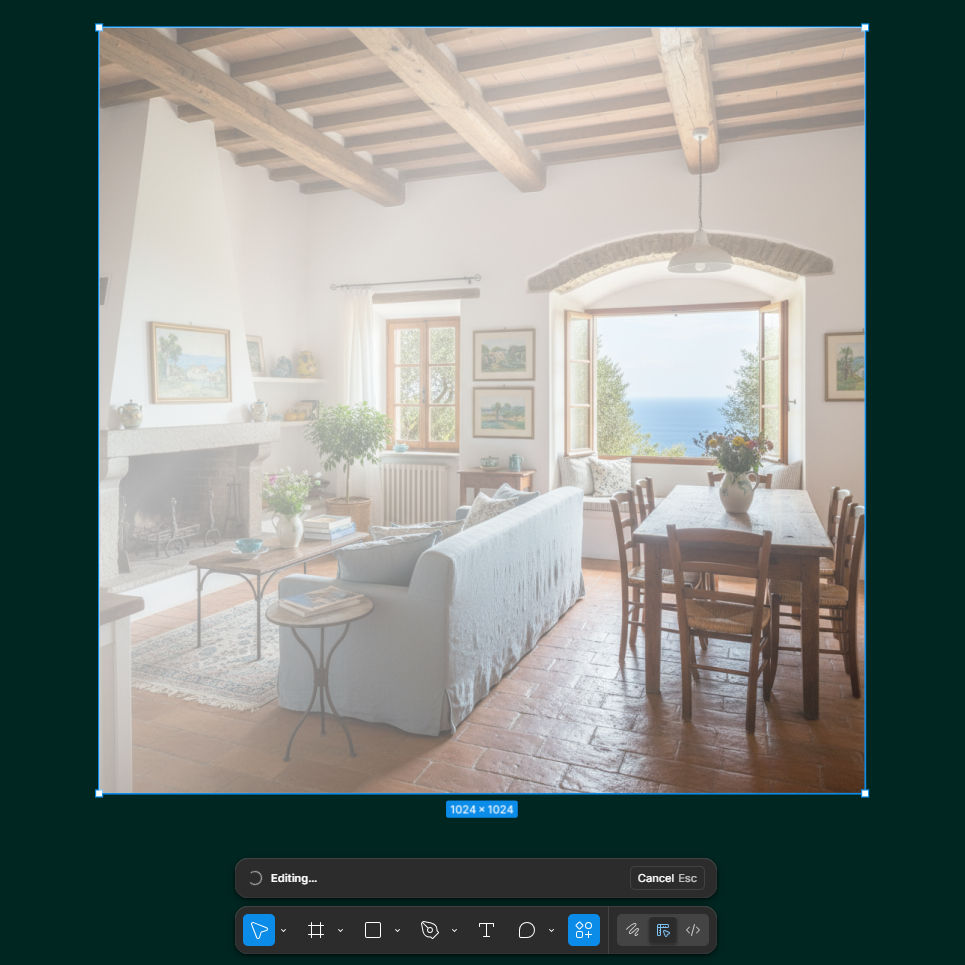
Figma’s “Make Image” can:
- Generate illustrations
- Create avatars
- Produce placeholder product photos
- Remove backgrounds
- Enhance existing images / Boost resolution
Smart Ways to Use It
- Generate consistent placeholder images across your UI
- Create custom illustrations without external tools
- Mock brand visuals faster
- Improve the realism of prototypes
Quick Guide: When and Where to Use Figma’s AI Tools
Here are a few practical ways to weave these AI tools into your real design workflow:
- Brainstorm + Generate
- Start with First Draft to explore multiple layout ideas.
- Then add interactions to turn chosen drafts into clickable prototypes.
- Start with First Draft to explore multiple layout ideas.
- Cleanup Before Handoff
- Use Rename Layers for clean layer naming.
- Use Replace Content to generate realistic text.
- Use Boost Resolution or Remove Background to polish image assets.
- Use Rename Layers for clean layer naming.
- Rapid Localization or Copy Variants
- Use Rewrite / Translate / Shorten Text to create tone variants or multilingual versions.
- Use Text Suggestions to fill repetitive UI text quickly.
- Use Rewrite / Translate / Shorten Text to create tone variants or multilingual versions.
- Prototype with Realistic Visuals
- Use Make & Edit Images to generate illustrations or realistic visuals.
- Use Add Interactions immediately to prototype the flow.
- Use Make & Edit Images to generate illustrations or realistic visuals.
Conclusion: AI Doesn’t Replace Designers — It Replaces Busywork

Figma AI won’t think for you. It won’t magically craft perfect UX. It won’t replace your creativity, your decisions, or your taste.
What it does do is eliminate hours of boring, repetitive, “why-am-I-doing-this-at-2AM” work.
Use it smartly, and you:
- Work faster
- Explore more variations
- Collaborate better
- Prototype more realistically
- Deliver cleaner handoff files
AI isn’t the shortcut.
It’s the accelerator.
And the designers who learn to use it well?
They’re the ones who stand out.
If you’re looking to elevate your product’s user experience or need a team that can build thoughtful, scalable interfaces, Think201, a leading UI/UX design company in Bangalore, is here to help you design with purpose and consistency. Let’s build something users will love.
Written by Gomathi AB