A Beginner’s Guide to Using Components in Figma

So you’ve started designing on Figma, maybe for a website, an app, or a full web platform. You’ve nailed the basics: grids, buttons, headings, images, and all the UI building blocks. You’ve even finished a few screens, and you’re feeling pretty good about the progress.
But then it hits you.
You still have 10-20 more screens to create. Edge cases. Error states. Confirmation states. Alternate flows. Breakpoints. And suddenly, the fun of designing starts slipping into a black hole of repetition.
That’s when most beginners ask the same question:
“Is there a way to NOT redo the same thing a hundred times?”
Short answer: Yes. Absolutely.
Thanks to Figma Components.
Why Components Are a Game-Changer

Figma’s Components let you create something once – say a button, nav bar, card, or modal – and reuse it everywhere. The original version becomes your main (parent) component, and every reused copy becomes an instance (child).
Update the parent → every instance updates automatically.
It’s consistency, efficiency, and pure designer happiness.
Why this matters
- No more repetitive grunt work
- UI stays clean and consistent
- Edits are made once, not 878467 times
- Workflows become faster and more scalable
- You actually get to focus on creative design again
How Components Improve Your Workflow
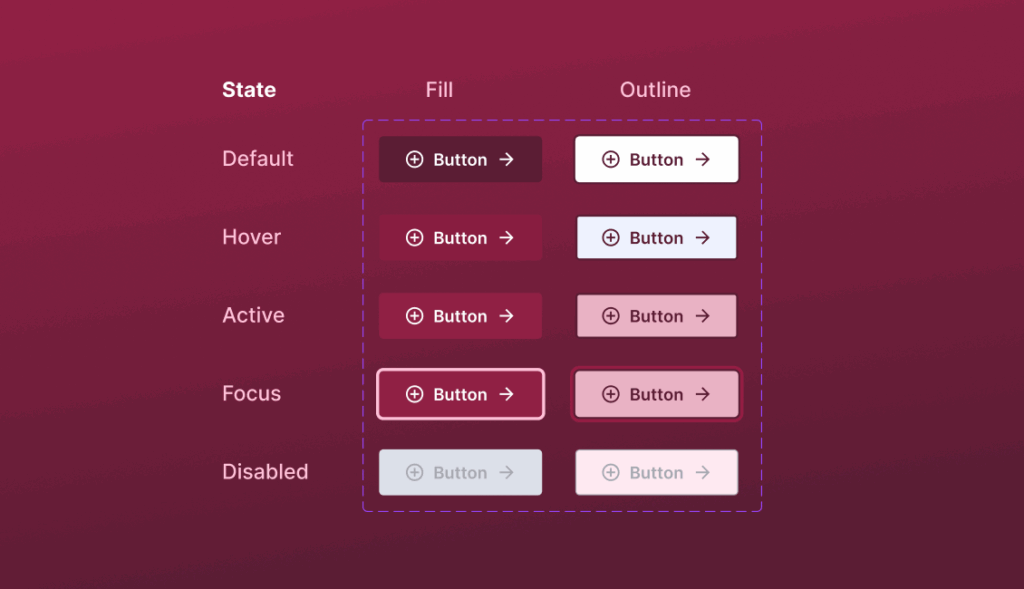
Components aren’t just for buttons. They unlock a whole design system mindset.
You can:
- Build variants (default, hover, disabled, active, focus, dark mode, etc.)
- Animate component transitions for micro-interactions
- Switch an instance’s properties instantly
- Use GIFs or motion elements inside your components
- Create dropdown animations, hover animations, icon transitions and more
The sky’s genuinely the limit.
Your creativity decides the complexity – components simply make it manageable.
Getting Started: A Simple First Step

You don’t need to master everything at once. Start small.
- Select any UI element you use often
- Right-click → Create Component
- Drag it from the Assets panel into any frame
- Make variants when you’re ready
- Use prototypes to connect animation states
If you want a quick visual breakdown, here’s a great starting point:
Components fundamentals: Figma Design for beginners
It’s crisp, clear, and covers exactly what beginners need.
Real Scenarios Where Components Save You Hours
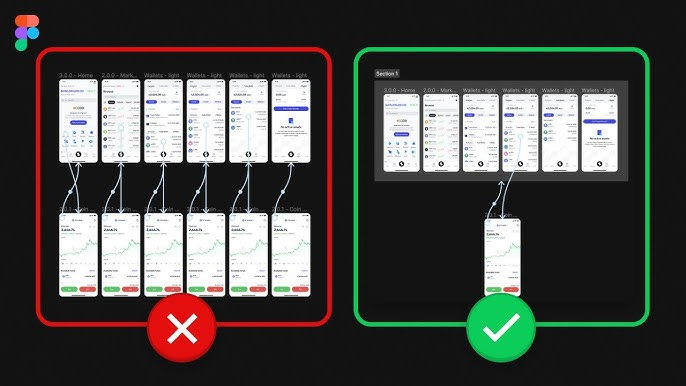
- Designing 30 buttons across all screens? → One component.
- Updating icon size across your entire project? → Edit once.
- Switching to dark mode? → Swap variants, done.
- New branding? → Change the parent styles → everything updates.
- Complex flows with micro-interactions? → Animate via component variants.
This is how design scales – not by working harder, but smarter.
Final Thoughts
Components are one of the most powerful features in Figma. They bring structure, speed, and logic into your design workflow – and once you get used to them, you’ll never want to design without them.
They’re essentially the “design system starter pack” for beginners.
A small step that leads to a huge upgrade in your efficiency.
So explore them. Play around. Break things. Rebuild.
Your future self (and your team) will thank you.
And honestly?
God bless Figma for giving designers this superpower.
If you’re looking to elevate your product’s user experience or need a team that can build thoughtful, scalable interfaces, Think201, a leading UI/UX design company in Bangalore, is here to help you design with purpose and consistency. Let’s build something users will love.
Written by: Gomathi AB